 Mary Janine L. Kamenić
 Julianna Widlund P.E
 Stevan Lukic CEng
This month's release is focused on geospatial context for groundworks and civil drawings, plus a workflow improvement that saves time on repeat takeoffs. Here's what's changed and how to use it.
Geo-reference your drawings directly in Civils.ai
Civil and groundworks drawings — highways, utilities, landscaping, and foundations — are now drawn against real-world coordinates rather than living in isolation on a PDF. You can geo-reference any of these drawings inside Civils.ai and pin them to their actual site location.
To get started, open your drawing and select Add drawing to map. This places the drawing into the map workspace, where you can begin aligning it to the ground.
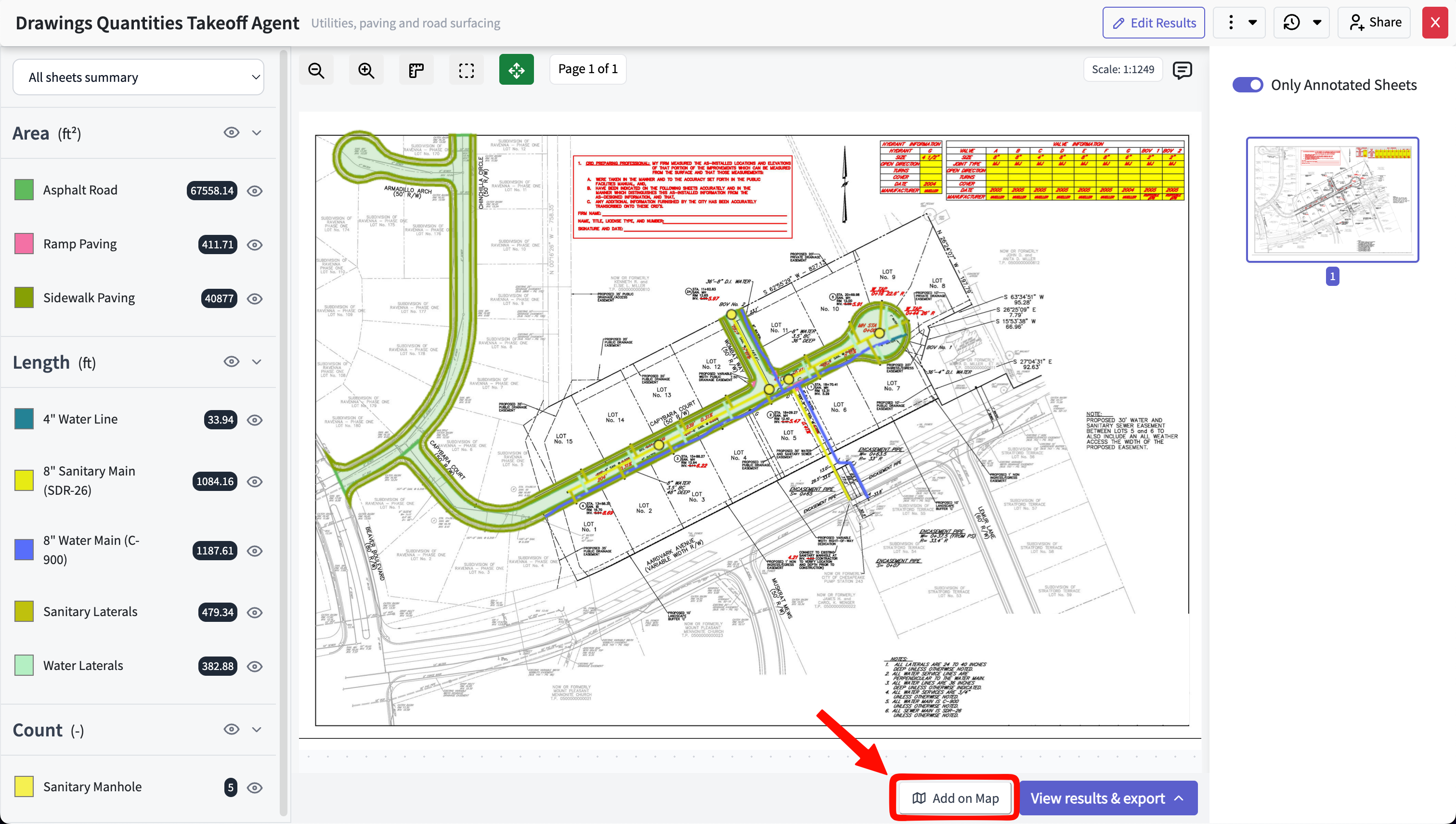
Select "Add drawing to map" to begin geo-referencing a drawing.
This is particularly useful for groundworks and civil scopes, where understanding how a drawing sits against the surrounding site, existing utilities, and topography is often as important as the measurements themselves.
Overlay drawings onto map and satellite views
Once a drawing is on the map, you can overlay it onto the base view and switch between map and satellite modes to suit the task — map view for street and boundary context, satellite view for verifying alignment against real ground features.
Aligning the drawing is straightforward. You can:
Scale the overlay to match the map's real-world dimensions
Move it to position it correctly over the site
Rotate it to match the drawing's orientation to true north or to existing features
Adjust each of these until the drawing sits accurately over its location.
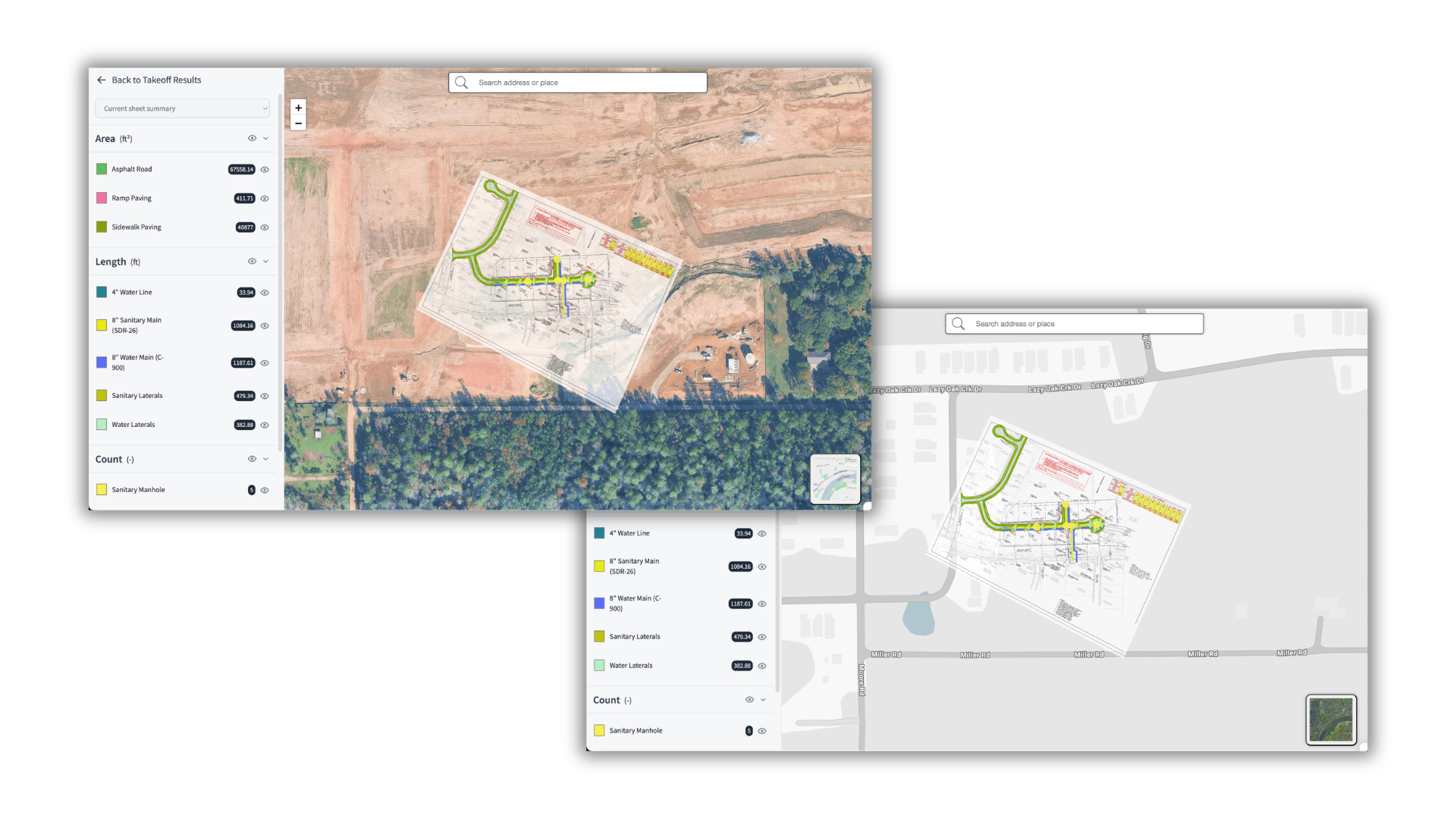
A geo-referenced drawing overlaid on satellite view, scaled and rotated to match the site.
Export to QGIS, ArcGIS, and Google Earth
After geo-referencing is complete, you can export the result as a Shapefile for use in your wider GIS and design workflow. The export is compatible with QGIS, ArcGIS, and Google Earth, so the spatial work you do in Civils.ai carries through to the tools your team already uses.
This keeps a single, consistent geo-referenced source across applications — rather than re-aligning the same drawing separately in each tool.
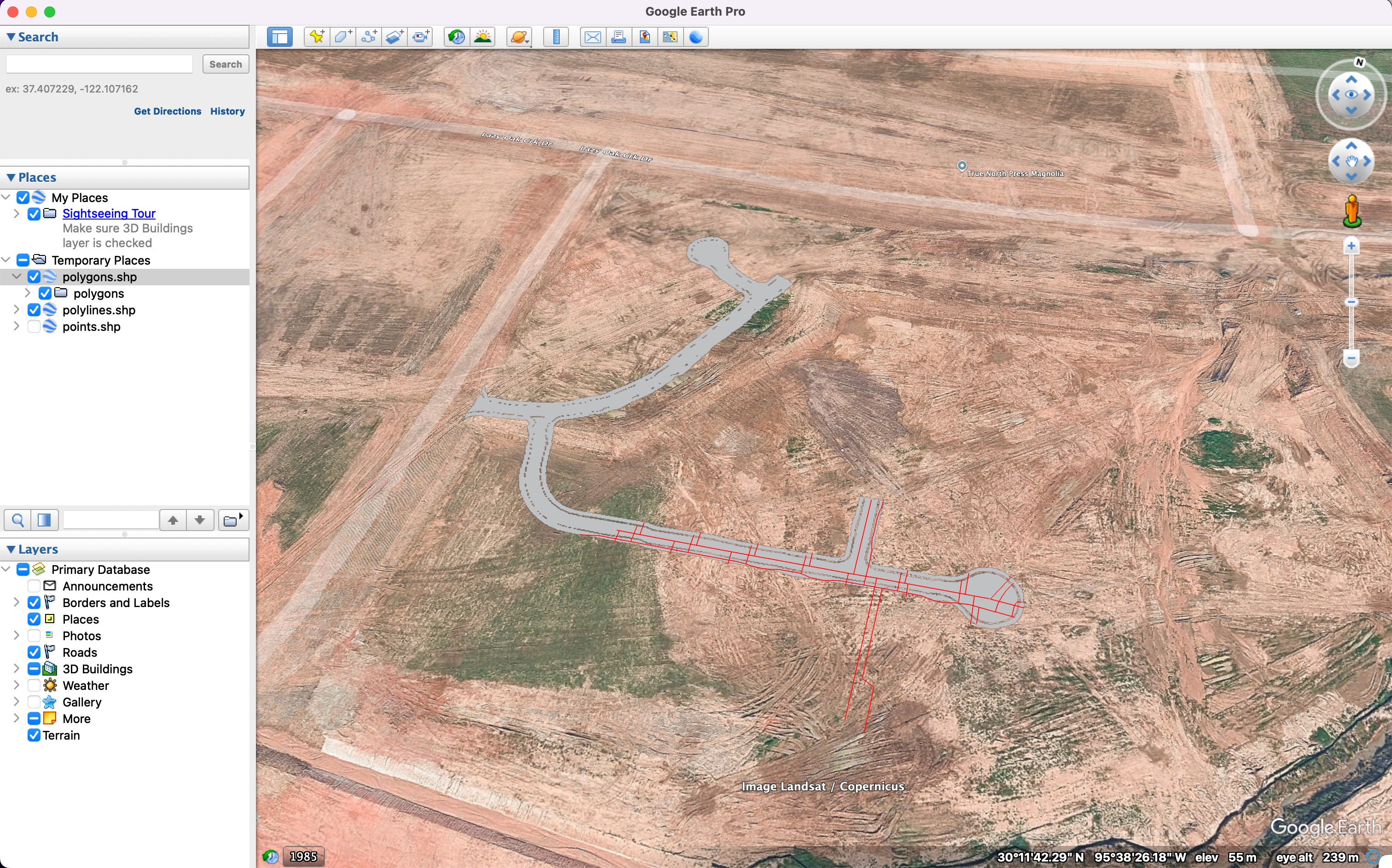
The exported Shapefile viewed in Google Earth.
Save takeoff prompts as reusable templates
Finally, a smaller change that adds up over time. Prompts in the takeoff agent can now be saved as templates and reused, so you no longer need to retype a prompt you run regularly.
If you frequently measure the same scope — for example, a standard set of paving and landscaping areas, or a recurring utilities run — save the prompt once and apply it the next time with a single click. Open the takeoff agent and use the template button to save the current prompt or select a saved one.
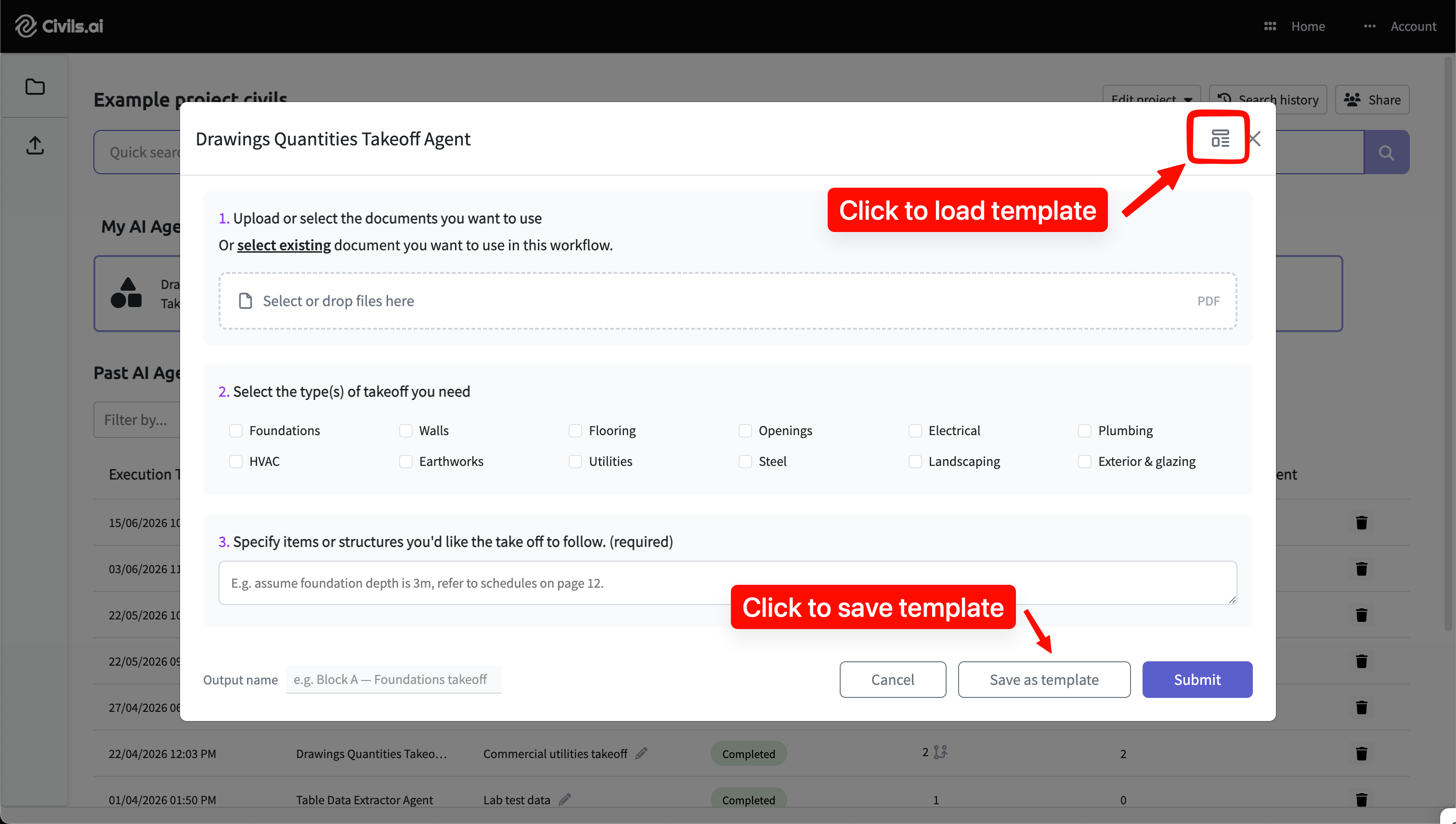
Save and reuse takeoff prompts from the template button in the takeoff agent.
This works alongside the saved-checks templates already available for specs and contract checks, giving your team a consistent, repeatable starting point across workflows.
Getting started
All four updates are available now. Geo-referencing and Shapefile export are accessible from any compatible civil or groundworks drawing, and prompt templates appear in the takeoff agent.
As always, AI-prepared takeoffs are a draft to support your work and should be reviewed by a qualified professional before issuing. If you'd like a walkthrough of the new geospatial tools, book a demo or get in touch.


