 Mary Janine L. Kamenić
 Julianna Widlund P.E
 Stevan Lukic CEng
1. Edit your AI takeoff results
Your AI takeoff is now a starting point you can shape. Tweak measurements, add what's missing, and rename categories — all without leaving the drawing. Every change auto-saves, and your original AI takeoff is always preserved.
Full step-by-step guide: How to Edit Civils.ai Quantity Takeoffs
Turn on edit mode
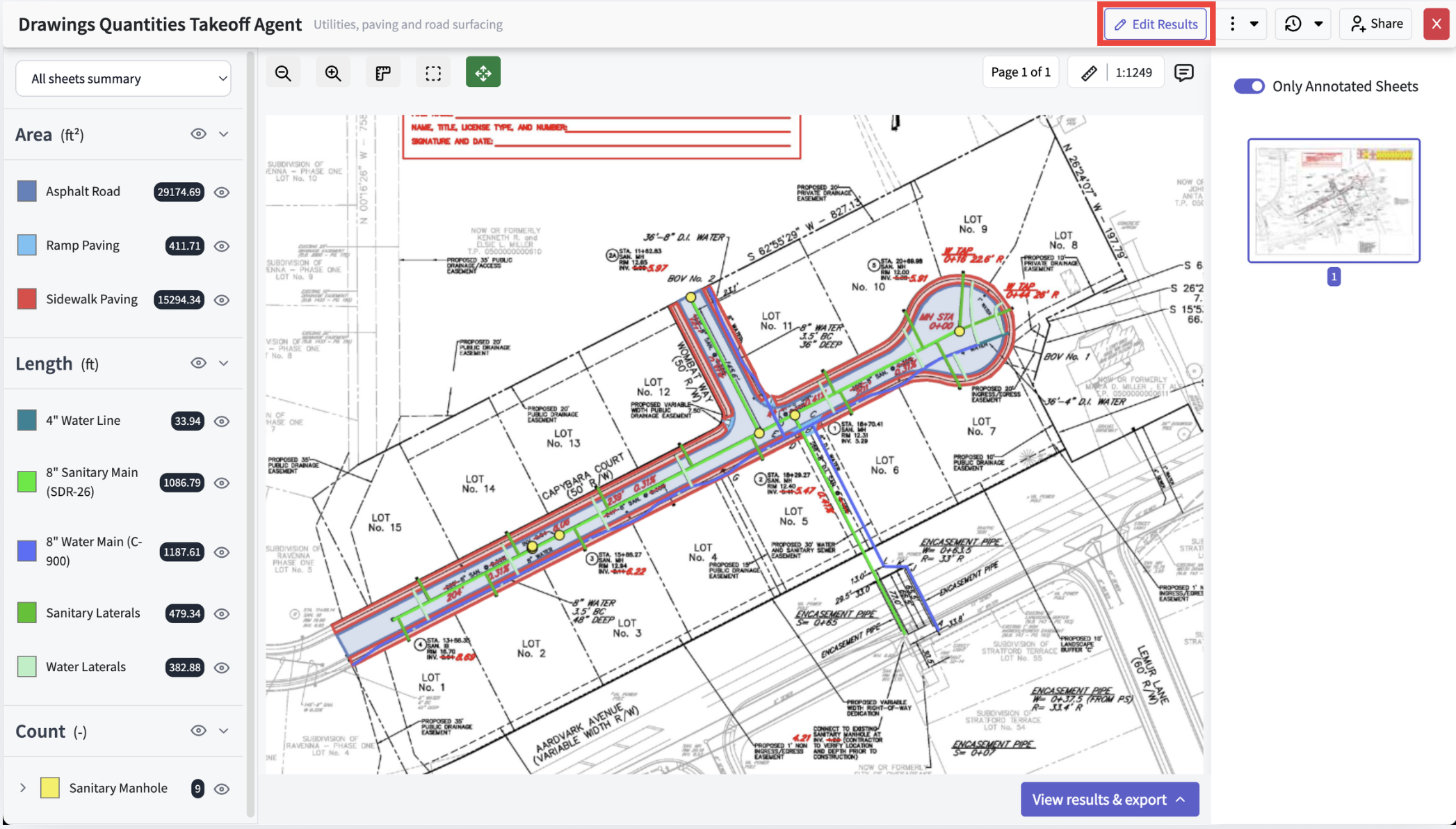
Click Edit results in the top right. Make your changes — they save automatically — then hit Save, or Cancel to discard.
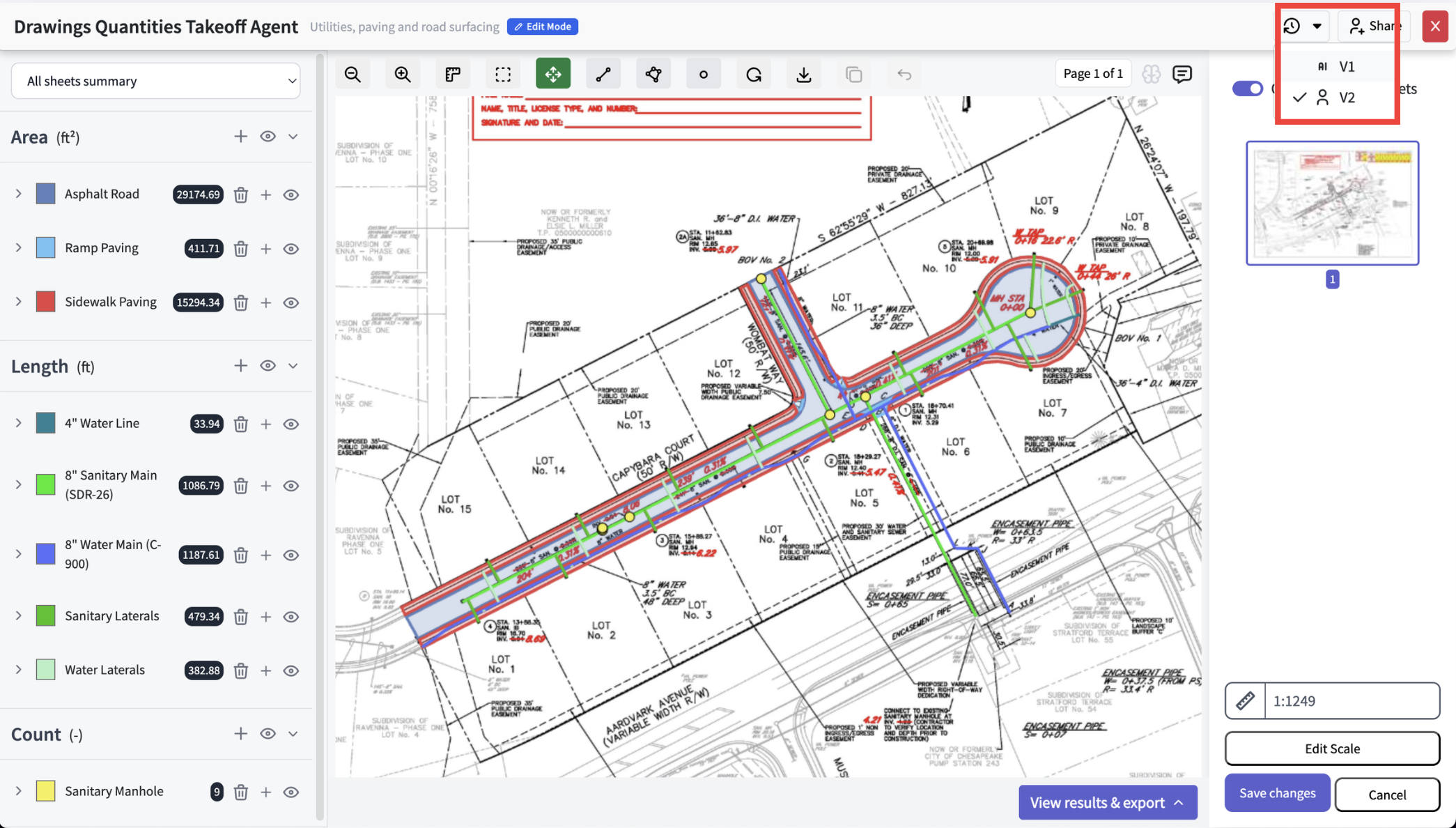
Your original is always safe
When you start editing, we lock in your original AI takeoff under the Versions button. Jump back to it anytime — editing again simply creates a new version.
Reposition any measurement
Double-click any measurement (area, linear, or count) to edit it. Drag the whole measurement to move it, or drag a single node to fine-tune.
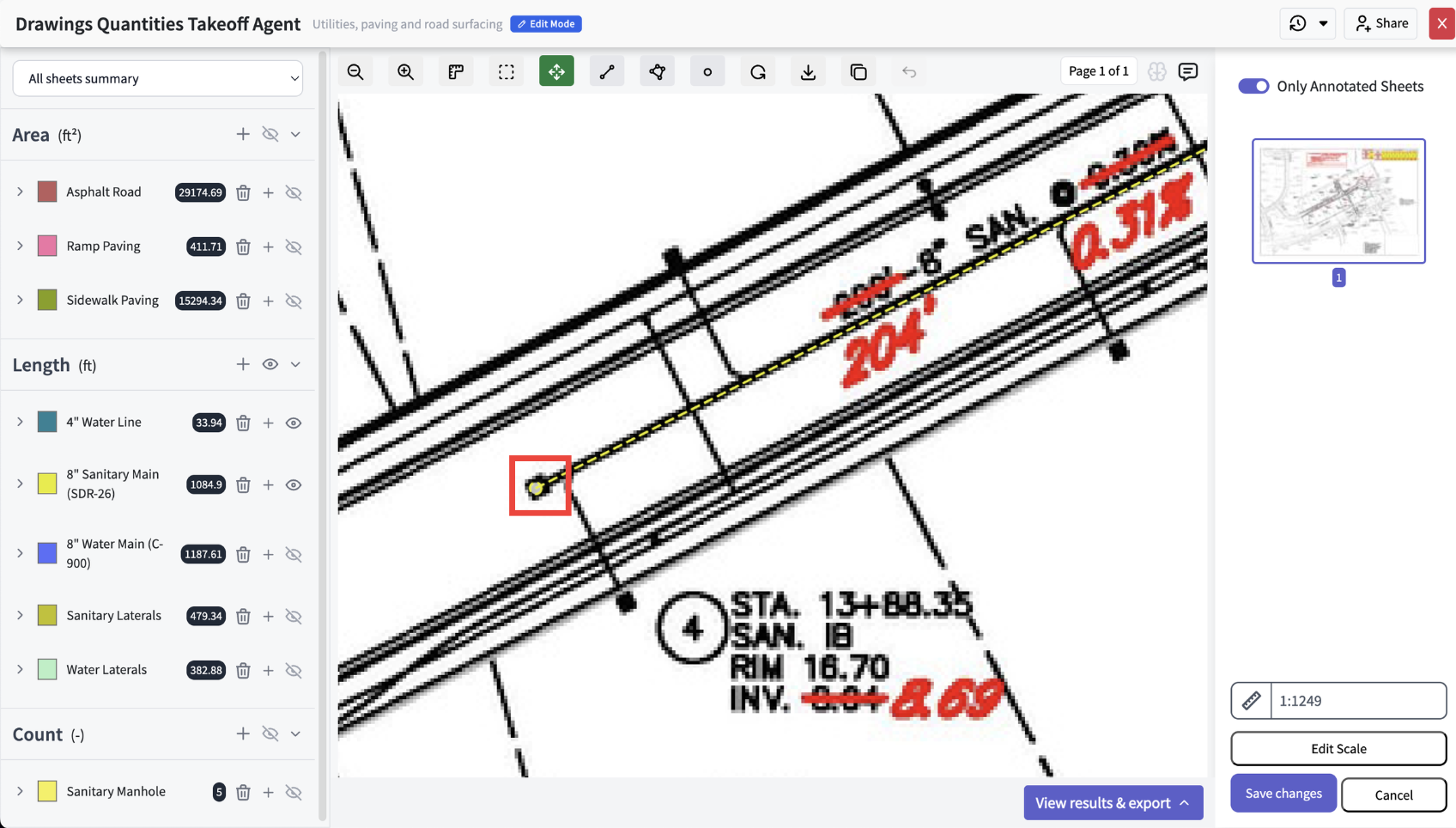
Add or delete nodes
Double-click a linear or area measurement, then right-click along it:
Add a node — right-click where you want it, then drag to position.
Delete a node — right-click the node, then choose Delete node.
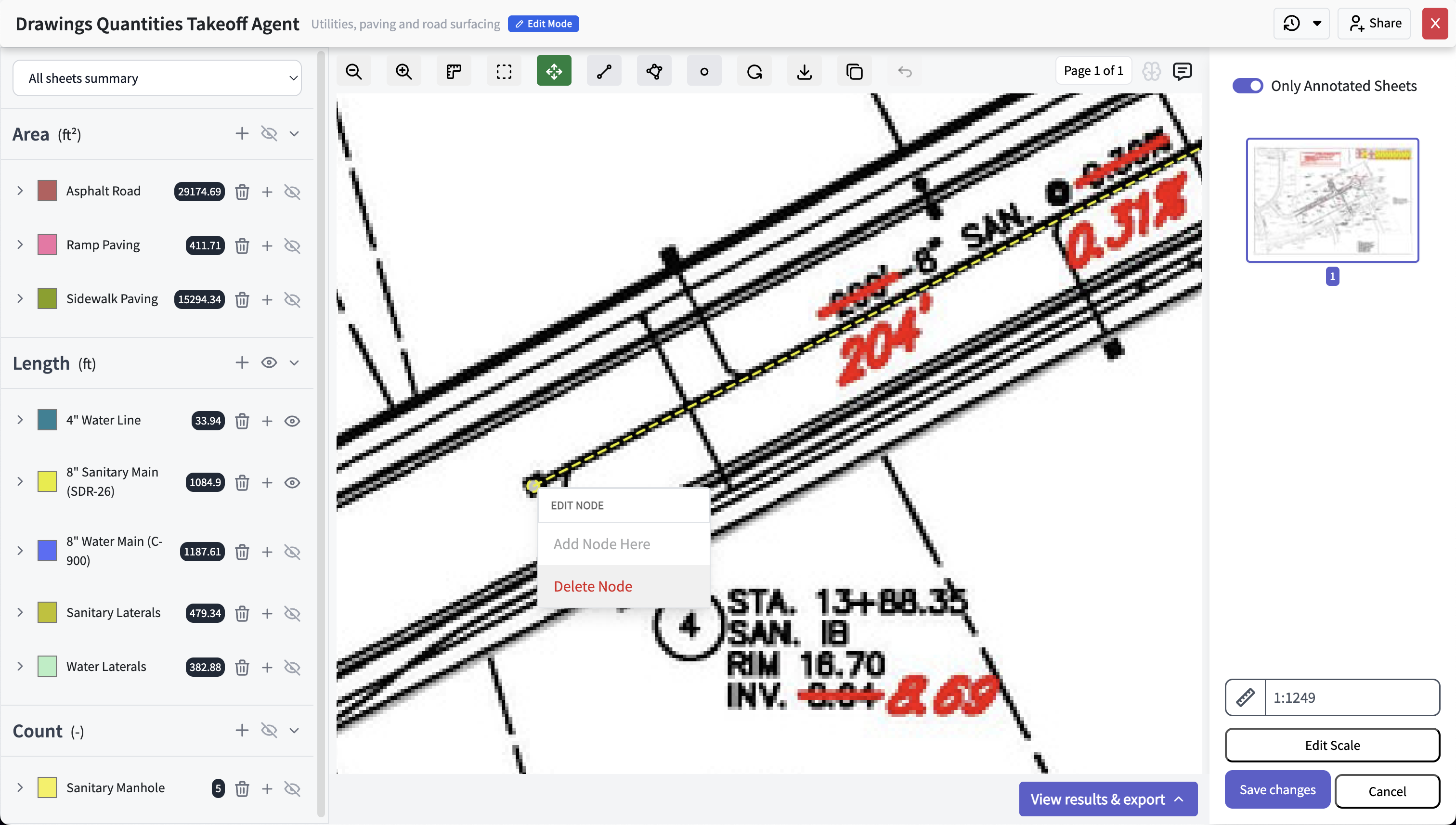
Add new measurements
Click the + next to a label category (e.g. 4" water line) to add another measurement of that type. Click to start, double-click to finish. Hit Esc to step back, or Pan to stop.
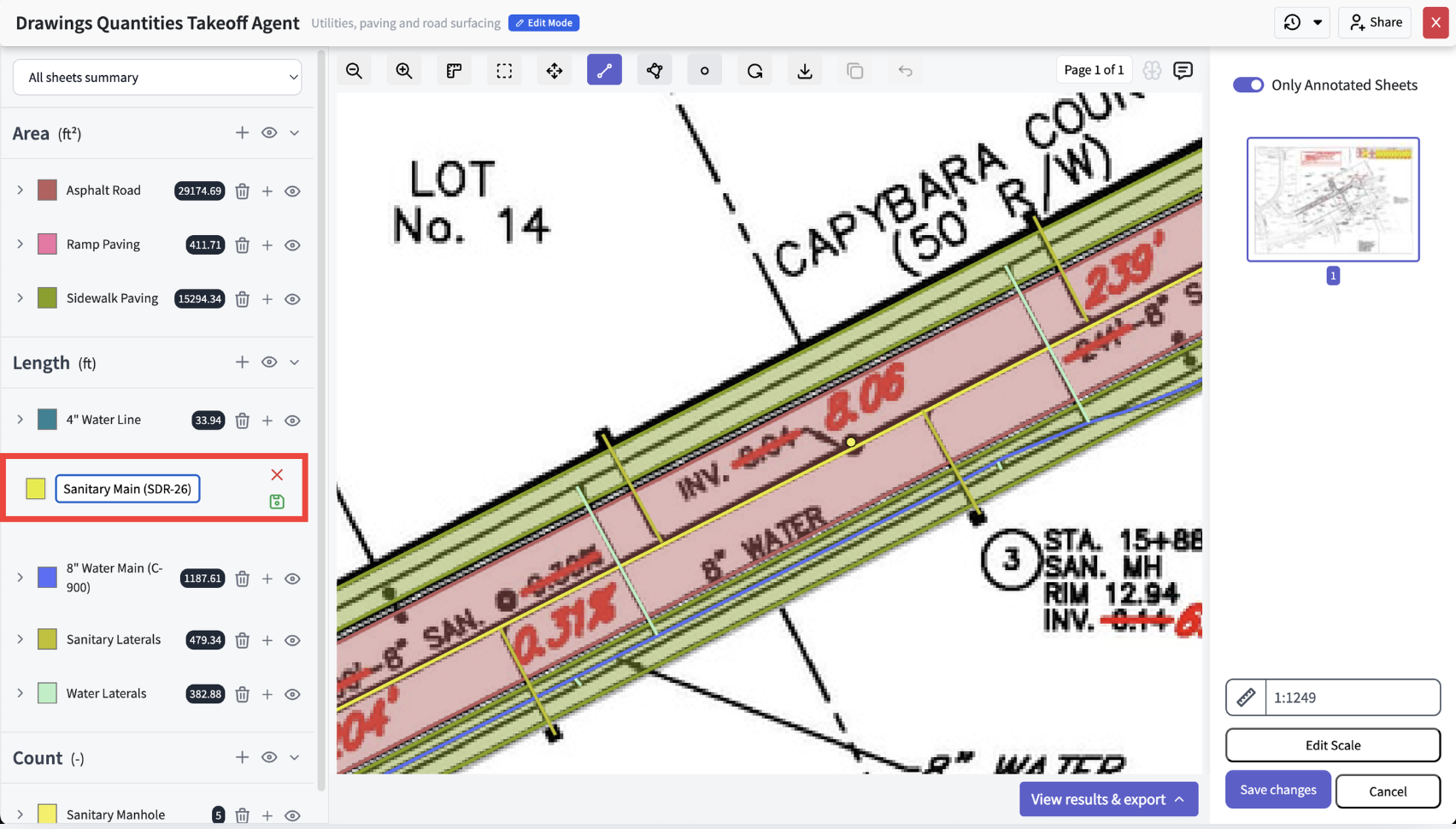
Create or rename label categories
New category — click the + next to Area, Length, or Count, type a name, and save.
Rename — double-click any label, edit, and save.
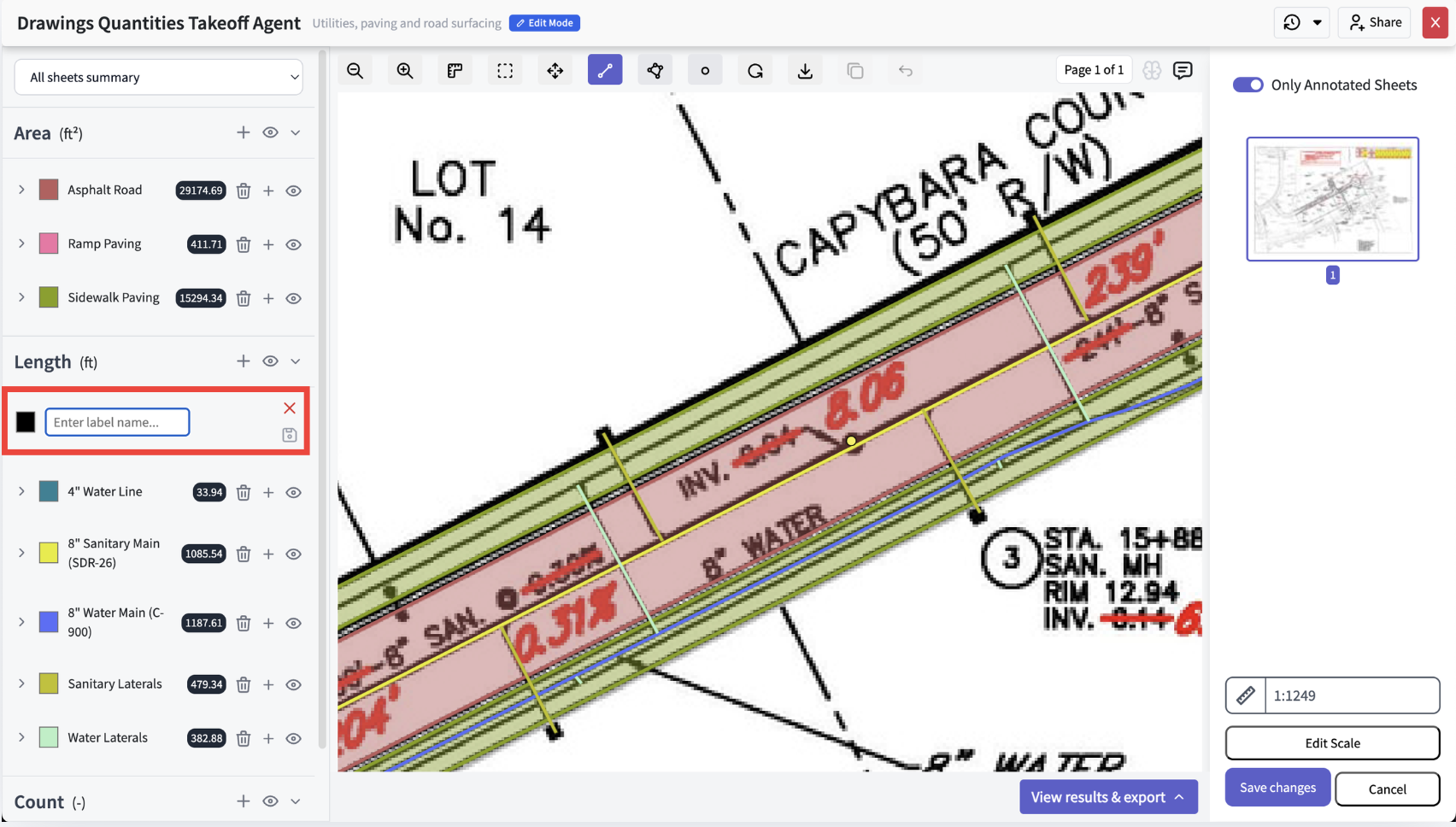
Delete measurements and categories
One measurement — right-click it and choose Delete measurement, or use the trash icon in the category dropdown.
A whole category — delete it to remove the category and all its measurements at once.
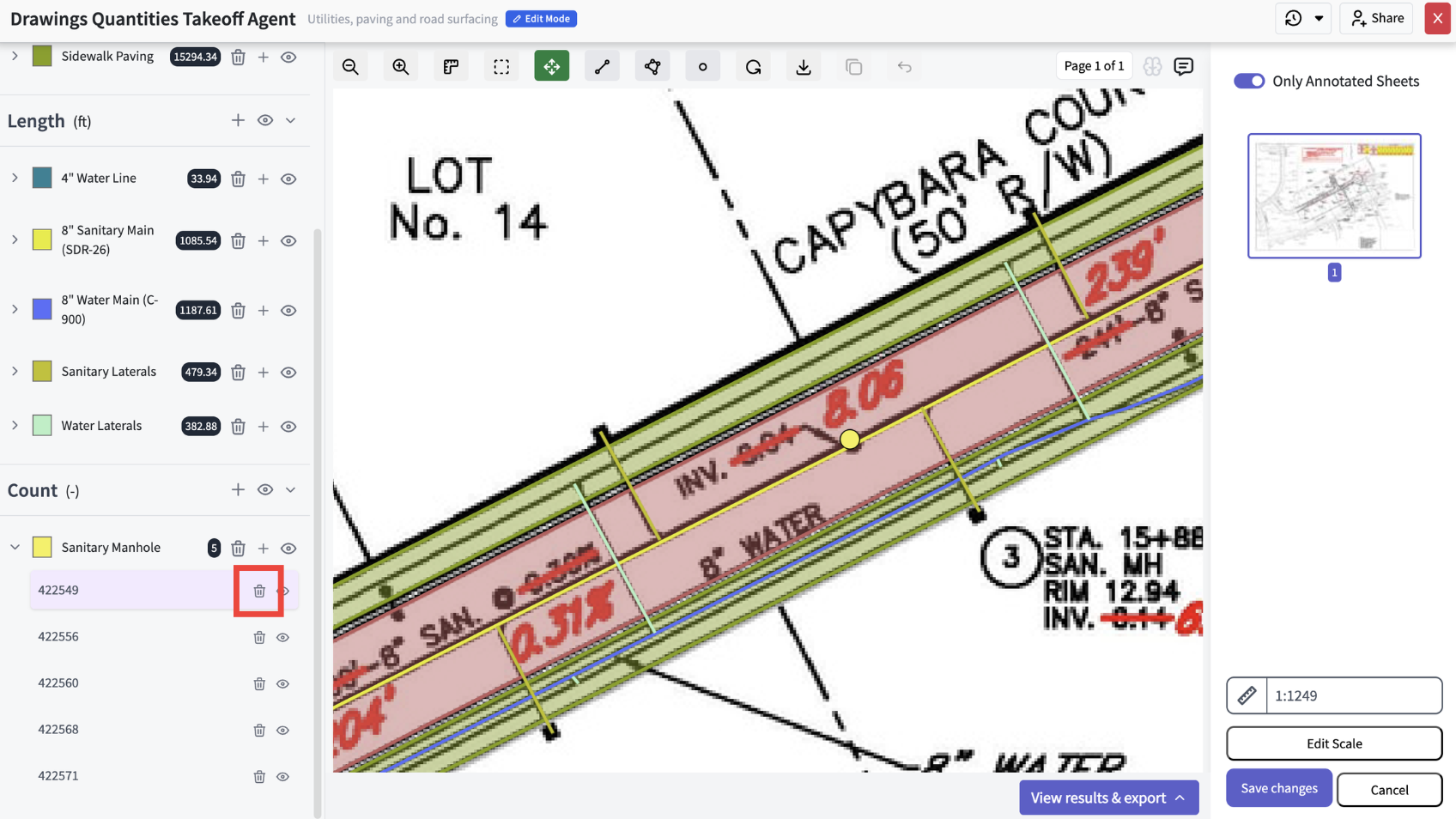
Undo a mistake
Deleted the wrong thing? Click the undo arrow to revert your last action.
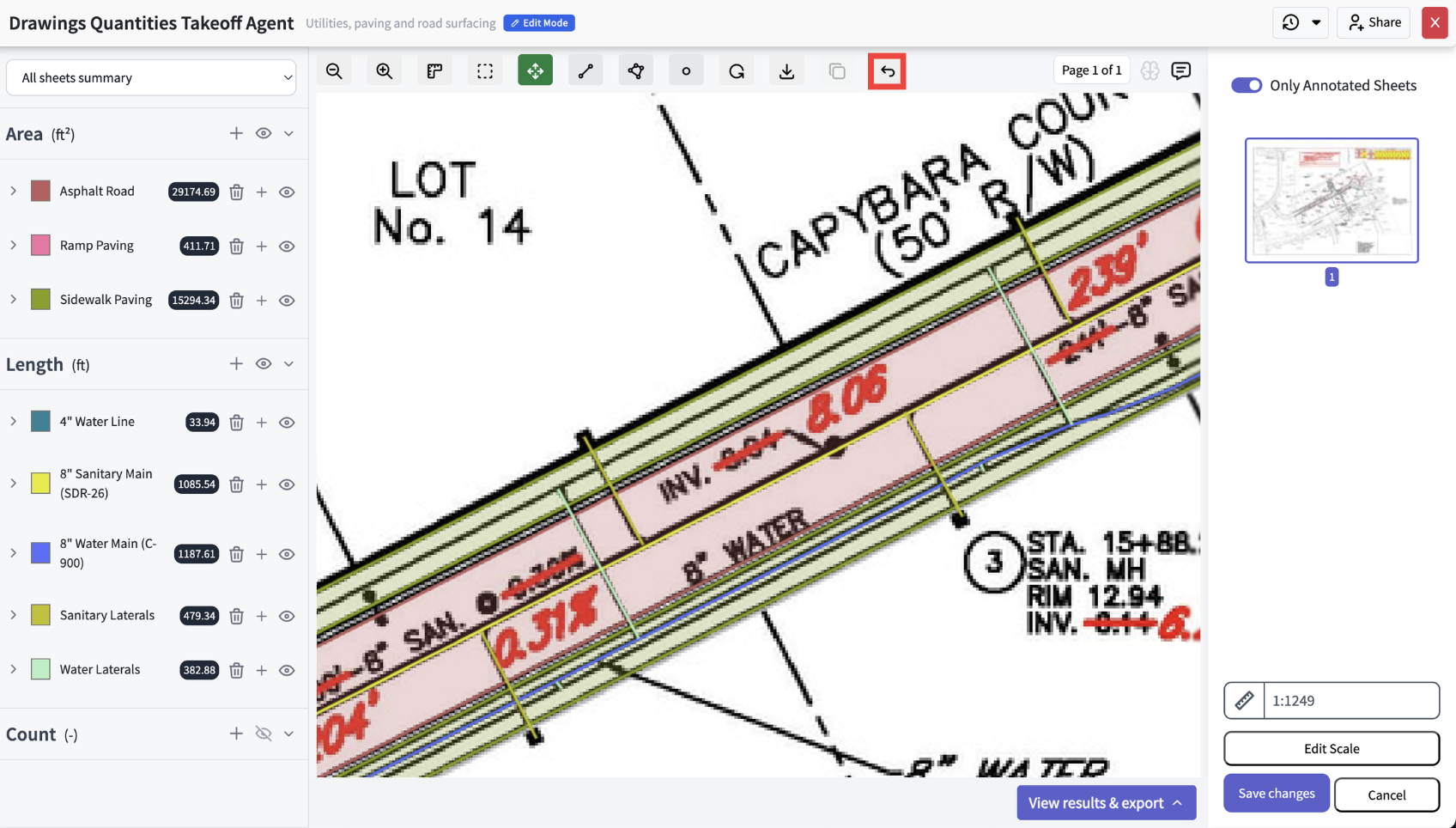
Change the drawing scale
Click Edit scale in the bottom right. Set it manually, or choose Set scale with points to pick two points and enter the real-world distance. Every measurement updates to match.
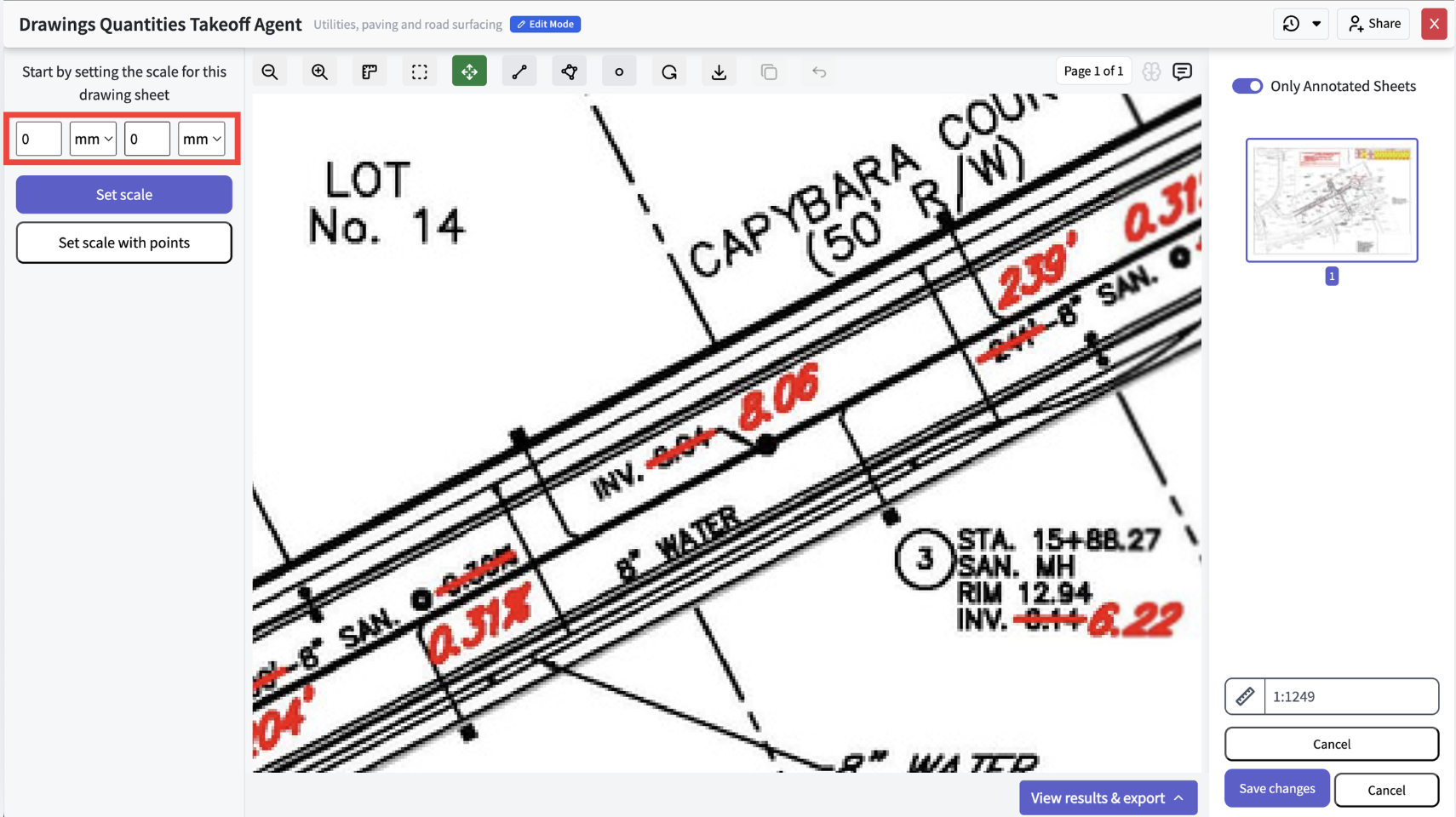
Tag and group measurements
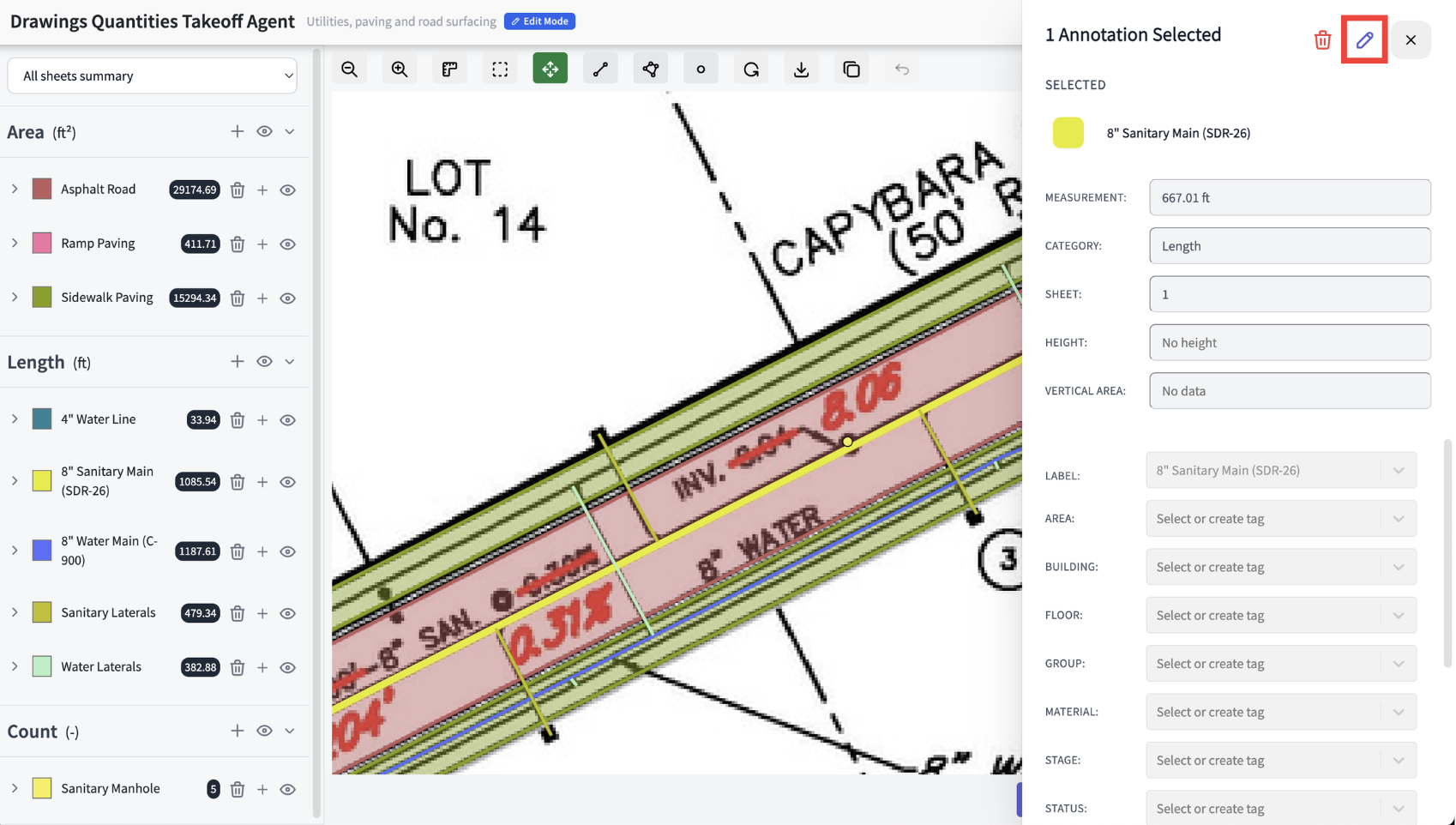
Add properties to measurements so your output table breaks quantities down exactly how you need — by site area, construction phase, or anything else.
One measurement — click it, hit Edit, then type or pick tags.
In bulk — click Multi-select measurement, draw around the measurements, choose the type, and edit them all together.
2. Share takeoff results
Send finished takeoffs to teammates, clients, or subcontractors with a secure link — no account needed on their end.
Four steps to a shareable link
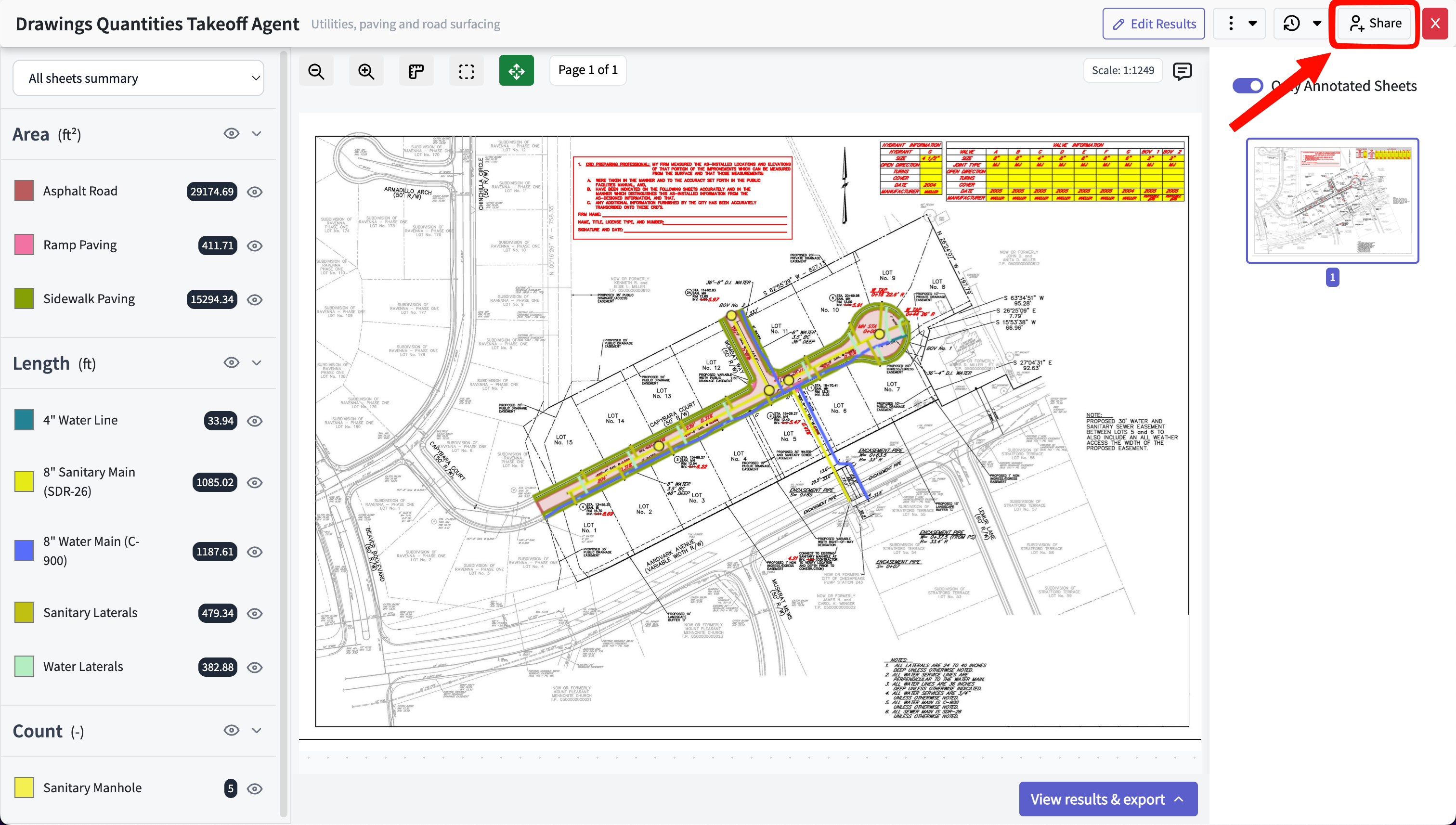
Click Share after running your takeoff.
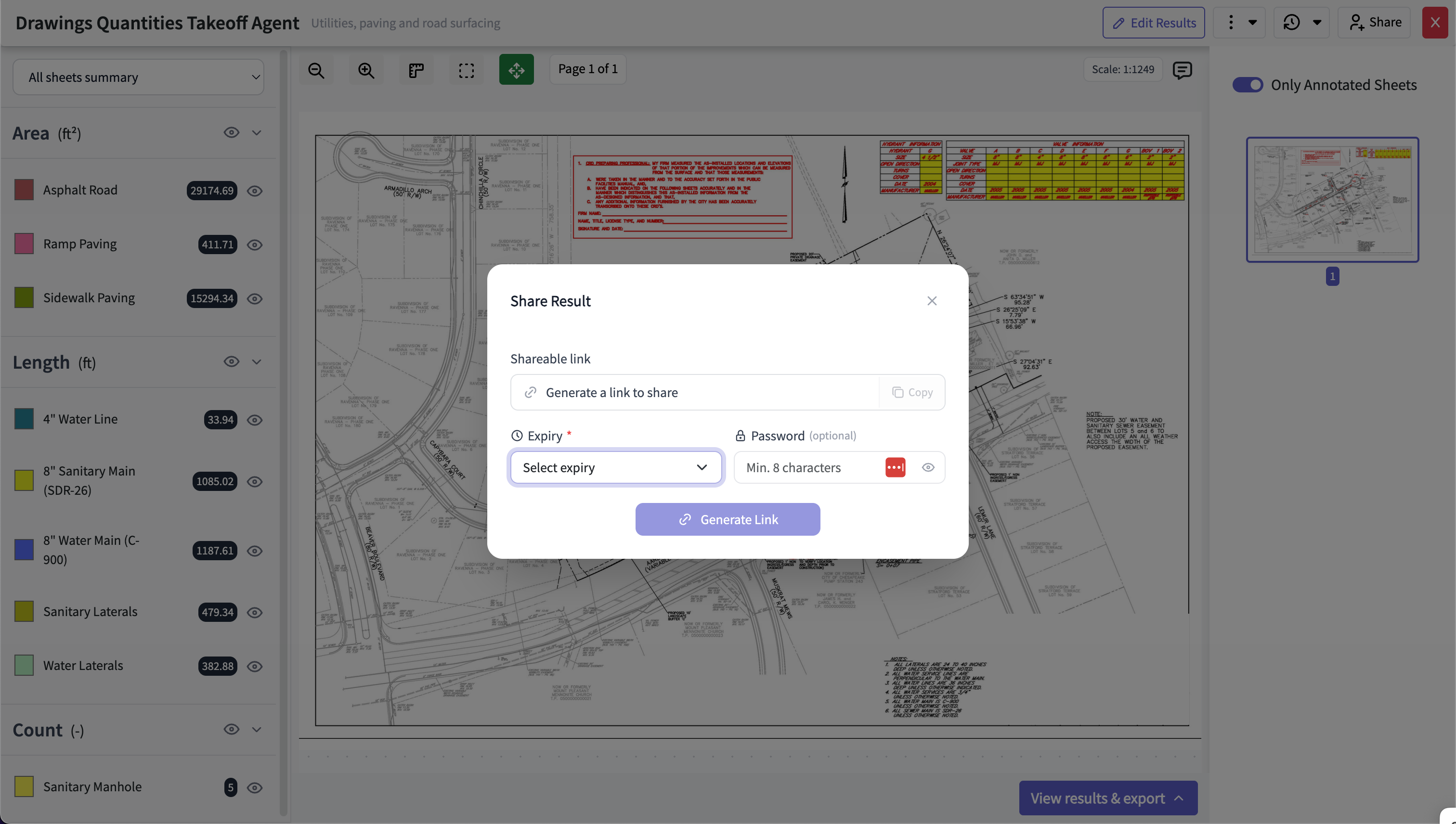
Set an expiry time — control how long the link stays active.
Add a password — only people you give it to can view the results (without one, anyone with the link can access).
Generate and send — copy the link and share it. Recipients just paste it into their browser to view.